You’ve had it two weeks. The text sometimes looks slightly smudged, the battery didn’t last the fortnight the reviews promised, and there’s a settings menu full of options nobody explained. If you’re wondering how to get the most out of your BOOX E Ink tablet, the honest answer is that the device ships with defaults built to be safe for everyone rather than good for you.
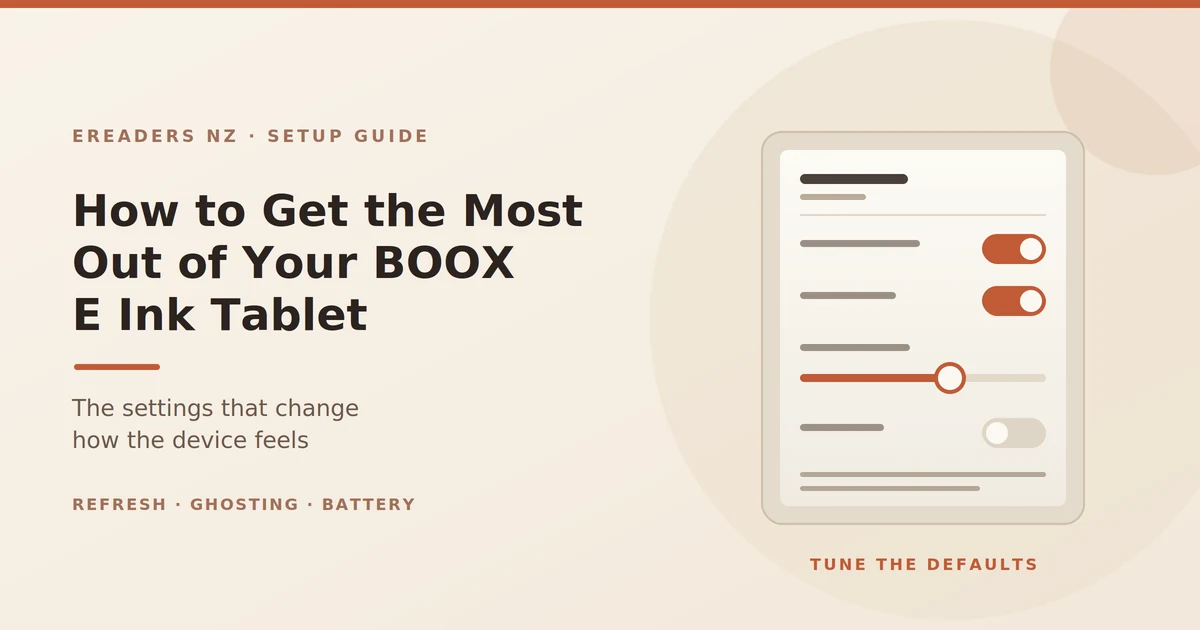
How to Get the Most Out of Your BOOX E Ink Tablet
Almost every complaint we hear faded text, ghosting, disappointing battery traces back to four or five settings. Change those and it becomes a different device. Here’s what to change, what to leave alone, and the habits that keep it out of the drawer.
The five-minute setup that fixes most complaints
Do these first, in this order:
- Update the firmware. Free performance and bug fixes, and the first thing support will ask.
- Set the refresh mode per app, not globally. This is the big one.
- Adjust the front light level and warmth to the room you actually read in.
- Restrict background apps so things you’ve forgotten about aren’t syncing all night.
- Turn on app optimisation for your reading apps so they render properly on e-ink.
That’s most of the disappointment solved. The rest of this explains why each one matters.
Refresh modes: the setting that changes everything
E Ink screens redraw differently from LCDs, and BOOX gives you several refresh modes that trade image quality against speed. The default sits in the middle, which means it’s never quite right for reading and never quite fast enough for scrolling.
The fix is to set the mode per app rather than once for the whole device.
Which mode for which app
Names vary slightly between firmware versions, but the modes run from highest quality to fastest:
- Highest-quality mode: the sharpest text and the cleanest images, with the slowest page turns. Use it for reading apps, PDFs, and anything where text quality matters.
- Balanced mode: a compromise. Reasonable for general navigation.
- Fast mode: quicker redraws with visible quality loss. Useful for scrolling through lists or settings.
- Fastest mode: heavy artefacting, but usable motion. Only worth it for browsing or video, which e-ink isn’t really for anyway.
The practical setup for most people: highest quality for Kindle, Kobo, Libby and your PDF reader; a faster mode for the launcher, browser and anything you scroll through rather than read.
Fixing ghosting
Ghosting is the faint trace of the previous page left behind after a redraw. It’s normal E Ink behaviour, not a fault, and it’s more visible in faster refresh modes.
Two controls matter. Refresh frequency decides how often the screen does a full wipe every page, every five pages, and so on. More frequent full refreshes mean a cleaner screen and a brief black flash each time. Less frequent means fewer flashes and more accumulated ghosting.
Most readers land on a full refresh every 3–5 pages as a comfortable middle. If you read a lot of image-heavy content, go more frequent. If the flashing bothers you, go less and use a higher-quality mode to compensate.
Make your reading apps behave
Kindle, Kobo and Libby are all built for LCD screens. They work on a BOOX, but they need a nudge.
Turn on app optimisation for each of them. This lets you adjust contrast, bleach out grey backgrounds, disable animations and force refresh behaviour per app the difference between an app that looks washed out and one that looks like a book.
Turn off animations wherever an app offers it. Page-curl effects are actively bad on e-ink.
Be careful with dark mode. On an LCD it saves battery and eye strain. On e-ink it inverts the page to white text on black, which usually looks worse and wears no better. Try it, but don’t assume it’s an improvement.
Fonts and margins matter more here. E Ink renders thin, light fonts poorly. A slightly heavier serif or a medium-weight sans with generous line spacing reads noticeably better than the default on most devices.
Kindle, Kobo and Libby in New Zealand
All three install from the Play Store on Android-based BOOX devices, so your existing library comes with you.
Libby works with New Zealand library cards Auckland Libraries, Wellington City Libraries, Christchurch City Libraries and others participate, so free borrowing lands straight on the device. For a lot of owners this quietly offsets the purchase price.
Kindle works normally with your existing account. Kobo likewise, and it handles EPUB natively if you buy outside the Amazon ecosystem.
Your own files
For EPUBs and PDFs you already own, you have three options: a USB cable, a cloud service, or BOOXDrop over your home Wi-Fi, which is usually the least painful for a batch of files.
One piece of advice from watching people’s libraries grow: build a folder structure on day one. “Books / Work / Reference / Current” beats a single folder with 400 files in it by month three, and the built-in reader handles folders fine.
Battery life: why yours isn’t lasting weeks
The “weeks of battery” figure you read in reviews assumes a basic e-reader with the front light off and Wi-Fi mostly idle. An Android-based BOOX running apps, syncing to the cloud and driving a stylus behaves much more like a modest tablet days, not weeks.
That’s not a defect. But you can get a lot of it back.
The main drains, in order:
- Front light, especially at high levels. It’s the single biggest consumer.
- Wi-Fi left on when you’re not syncing.
- Background apps you installed once and forgot.
- Auto-sync on accounts you don’t need synced.
- Stylus use, which keeps the digitiser active.
The settings that actually recover battery
Restrict background activity for everything except the two or three apps that genuinely need it. This is the highest-return change on the list.
Set an aggressive sleep timer a minute or two of inactivity and a longer auto power-off. E Ink holds the page with no power, so sleeping costs you nothing.
Turn off sync for accounts you don’t use. A Google account syncing contacts and calendar to a reading device is pure waste.
Use the lowest light level you can. In daylight, turn it off entirely the screen doesn’t need it, and this alone can double a charge for outdoor readers.
If you have a stylus: getting the writing right
Two things separate handwriting that feels good from handwriting that feels like plastic on glass.
The nib. Most devices come with a felt-tip nib, which gives more friction and a pen-on-paper feel, and wears faster. Harder plastic (POM) nibs glide more and last longer. Neither is correct it’s preference, and it’s worth trying both, since a pack of spares is inexpensive.
Nib wear is real. The textured screen surface that makes writing feel good is also grinding the nib down. A worn nib feels scratchy and can drag. Replace it when writing starts feeling wrong rather than assuming the screen has degraded.
Palm rejection is usually on by default but worth checking if you get stray marks. Resting your hand differently also helps more than people expect.
Handwriting-to-text handles neat printing and moderate cursive well and struggles with genuine scrawl. Test it with your real handwriting, not your careful handwriting, before building a workflow around it.
Annotating PDFs without losing your work
The most painful support message we get is someone who annotated a long document and can’t open their notes elsewhere.
Two habits prevent it:
Export a flattened copy when you’re done. Annotations often live in a layer or sidecar format that other PDF readers may not display. Exporting a flattened version produces a normal PDF that opens correctly for anyone you send it to.
Sync before you close. Set your annotation storage to a cloud folder and make a habit of confirming it’s uploaded before shutting the device. A device failure without sync is a real loss; with sync it’s an inconvenience.
Sync it into the tools you already use
A device whose notes don’t reach the rest of your life gets abandoned. Set this up on day one, before habits form.
Realistic options: Google Drive, Dropbox, OneDrive and OneNote for most people; Obsidian for anyone already using it. Which one matters far less than whether it’s automatic a manual export you have to remember is a workflow that will fail within a month.
Settings worth changing vs settings to leave alone
| Change these | Why |
|---|---|
| Refresh mode, per app | The single biggest quality improvement available |
| Refresh frequency | Controls the ghosting-versus-flashing balance |
| Front light level and warmth | Comfort, and the biggest battery saving |
| Background app restrictions | Recovers most of your lost battery life |
| App optimisation for reading apps | Fixes washed-out rendering and animations |
| Sleep and auto power-off timers | Free battery, no downside on e-ink |
| Navigation gestures | Faster than hunting for on-screen buttons |
| Leave these alone | Why |
|---|---|
| Factory screen calibration | Set per unit at manufacture; changing it rarely helps |
| Developer options | Nothing here improves reading, plenty can break it |
| Aggressive battery savers | They kill background sync, and you’ll lose notes |
| Anything labelled experimental or beta | Fine to try if you enjoy troubleshooting; otherwise skip |
| Rooting or custom launchers | Voids warranty and complicates firmware updates |
Looking after it in New Zealand conditions
Bright sun is fine. Heat isn’t. E Ink gets easier to read as light increases, so reading at the beach or on the deck is exactly what it’s for. Leaving the device on a car dashboard in a Hawke’s Bay summer is not every display has an operating temperature range, and a closed car exceeds it.
Sand and salt are the real outdoor risks. Not water, for most people. Keep sunscreen off your hands before handling it, and keep the USB-C port clean.
Humidity. If you’re somewhere damp, don’t store it in a sealed bag for weeks. A case with some airflow is fine.
Cleaning. A dry or barely damp microfibre cloth. No solvents, no glass cleaner.
A case beats a screen protector. E Ink screens aren’t touchscreens in the glossy-glass sense, and a protector can dull the texture that makes writing feel right. A case that covers the screen in your bag prevents the damage that actually happens.
Warranty and support
If you bought from a New Zealand retailer, the Consumer Guarantees Act gives you rights against that retailer if the device is faulty and a local repair or replacement rather than couriering a device offshore at your own cost. Grey imports complicate all of that considerably. If you’re not sure what your support position is, ask before something goes wrong. See what we stock and support at eReaders NZ.
Habits that keep it out of the drawer
- Sync a batch before you travel. Wi-Fi-only means an unloaded device on a flight is a brick.
- Keep one device for one purpose. The moment you install the apps you bought this thing to escape, you’ve bought an expensive slow phone.
- Do a weekly review if you take notes. Fifteen minutes re-reading turns notes into a system instead of a nicer drawer.
- Replace nibs before they annoy you. Cheap, and it prevents the “writing feels worse than it used to” conclusion that ends in a drawer.
- Charge it the night before a long day. Days of battery still means checking occasionally.
FAQs
Why does my BOOX screen look faded or smudged?
Usually the refresh mode. A faster mode trades image quality for speed, so set your reading apps to the highest-quality mode and adjust refresh frequency so the screen fully wipes every few pages.
How do I stop ghosting on my BOOX?
Increase how often the screen does a full refresh and use a higher-quality refresh mode in reading apps. Some ghosting is normal E Ink behaviour rather than a fault, but these two settings reduce it substantially.
Why is my BOOX battery draining so fast?
Front light level, Wi-Fi, background apps and auto-sync. Restrict background activity, turn sync off for accounts you don’t need, and keep the light as low as the room allows that usually recovers most of it.
Can I use the Kindle app on a BOOX in New Zealand?
Yes. Android-based BOOX devices install the Kindle app from the Play Store and your existing library works normally, alongside Kobo, Libby and your own files.
How do I transfer my own books to a BOOX?
USB cable, a cloud service, or BOOXDrop over your home Wi-Fi. BOOXDrop is usually easiest for a batch of files.
Do I need to update the firmware?
Yes, and it’s worth doing before troubleshooting anything. Updates fix bugs, improve refresh handling and occasionally add features to existing devices.
Do I need a screen protector?
Generally no. A protector can dull the writing texture, and a case that covers the screen in your bag protects against the damage that actually occurs.
The bottom line
Most BOOX disappointment is a settings problem, not a hardware one. Set refresh modes per app, fix the refresh frequency, restrict background apps, and get your sync working on day one. That’s the difference between a device you use daily and one that sits charging in a drawer.