Your Kindle books live in one app. A few Kobo purchases sit in another. Your library loans are on Libby, and the audiobook you’re halfway through is somewhere else again. Most eReaders only open one of those.
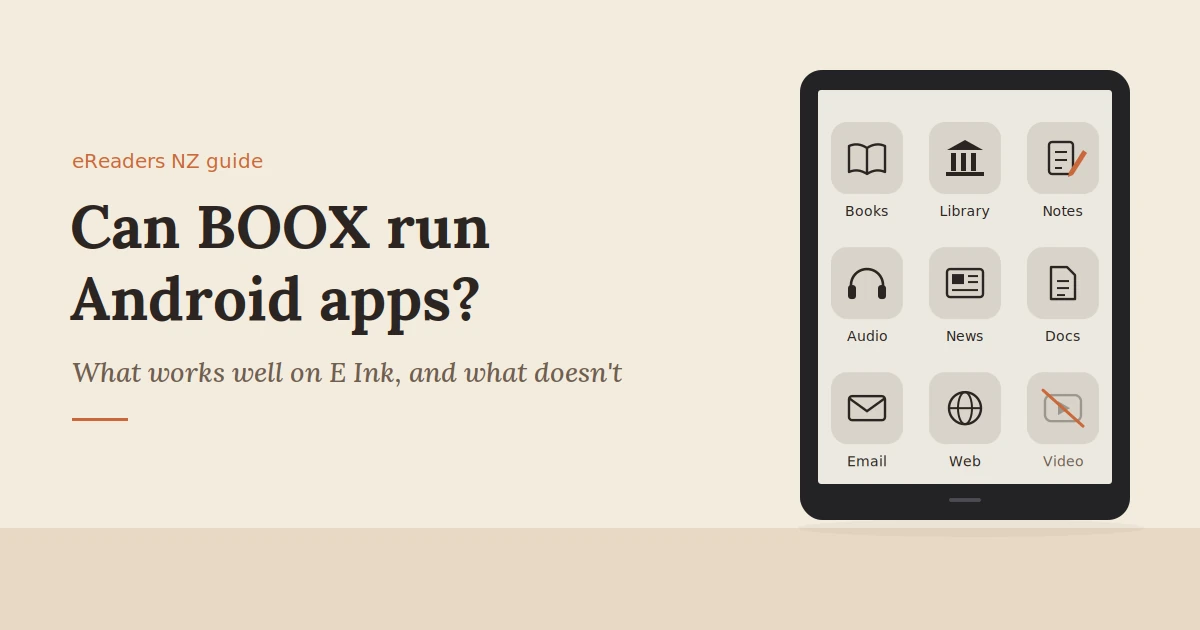
That’s why so many people ask: can BOOX run Android apps? Yes, most current BOOX eReaders and tablets do, which means one E Ink device can hold all of them. But whether an app runs and whether it works well on E Ink are two different questions.
Can BOOX Run Android Apps
This guide answers both: which apps shine on a BOOX, which are just usable, and which you’re better off keeping on your phone.
The short answer
Yes. Most current BOOX eReaders and tablets run Android with access to the Google Play Store, so you can install Kindle, Kobo, Libby, Google Docs and many other apps on one E Ink device. Apps built for reading and writing work best. Video, games and fast-scrolling apps technically run, but they’re a poor fit for E Ink.
Think of a BOOX as an Android device optimised for reading. You get the flexibility of apps without the distractions of a regular tablet, as long as you choose apps that suit the screen.
How Android works on a BOOX
BOOX devices run a version of Android adapted for E Ink, with the Google Play Store available. You sign in with a Google account and install apps just as you would on a phone. The difference from a Kindle or Kobo is openness: you’re not tied to one bookstore.
A few things worth knowing:
- Android versions vary by model. The Go 7 runs Android 13, the Note Air5 C runs Android 15 and the newer Note Air6 C runs Android 16. Newer versions generally mean better app compatibility.
- Google Play may need switching on. On some models, you enable Google Play in the settings during setup. Older BOOX models also needed a one-time device registration step before the Play Store worked. Follow the on-screen prompts, or ask your seller if you get stuck.
- BOOX adds its own reading tools. Alongside Android apps, you get BOOX’s built-in reader, Notes app and file transfer tools, which are optimised for E Ink.
- Kindle and Kobo devices work differently. They run closed systems tied to their own stores. That makes them simpler, but you can’t install other apps on them.
Which apps work well on E Ink?
Apps that show mostly static text work best on E Ink: reading, library, note-taking and document apps. Apps with lots of scrolling or animation are usable with the right settings. Video, games and fast social feeds technically run, but the slower screen refresh makes them frustrating.
| App type | How well it works on E Ink | Examples | Why |
|---|---|---|---|
| Ebook reading | Excellent | Kindle, Kobo, Google Play Books | Static pages suit E Ink perfectly |
| Library lending | Excellent | Libby, BorrowBox | Built for reading, with simple interfaces |
| Notes and documents | Very good | OneNote, Obsidian, Google Docs, Word | Mostly text; great with a stylus or keyboard |
| PDFs and research | Very good | Built-in BOOX reader, Adobe Acrobat | Annotation tools and large screens help |
| Audiobooks and podcasts | Very good | Audible, Spotify, Pocket Casts | The screen barely matters while you listen |
| News and articles | Good | Stuff, NZ Herald, RNZ, RSS readers | Fine once you switch to a faster refresh mode |
| Email and calendar | Good | Gmail, Outlook | Usable for reading and replying |
| Web browsing | Usable | Chrome, Firefox | Scrolling causes some ghosting |
| Social media | Poor | Instagram, TikTok, Facebook | Endless scrolling and video don’t suit E Ink |
| Video streaming | Poor | YouTube, Netflix | E Ink can’t refresh fast enough for smooth video |
| Games | Poor | Most mobile games | Animation and fast input lag on E Ink |
One surprise for many people is that this “limitation” is part of the appeal. With social media and video effectively off the menu, a BOOX stays a reading device.
The apps NZ readers use most on a BOOX
Most New Zealand BOOX owners start with the same handful of apps: Kindle and Kobo for purchased books, Libby and BorrowBox for free library loans, an audiobook app, a few news apps and something for notes. Together, they turn one E Ink device into your whole reading life.
Reading and library apps
- Kindle. Sign in with your Amazon account and your Kindle library appears. In Android reading apps like Kindle, you may need to buy new books through the store’s website, after which they sync to the app.
- Kobo. Your Kobo library syncs in the same way.
- Libby. Many NZ public libraries lend ebooks and audiobooks through Libby. Add your library card and borrow straight to the device.
- BorrowBox. Several NZ libraries also use BorrowBox. Having both apps on one device means you can borrow from whichever service your library uses.
This is a genuine advantage over a Kindle in New Zealand. Libby’s “send to Kindle” feature only works with US libraries, so Kindle devices can’t borrow from your local library that way, while a BOOX can run Libby directly.
Audiobooks and podcasts
Audible, Spotify, Pocket Casts and the RNZ app all work well. Most BOOX models have Bluetooth for headphones, and many also have a built-in speaker. Because the screen is mostly off while you listen, battery life holds up well.
News and reading later
Stuff, NZ Herald and RNZ apps work fine for reading articles, especially with a faster refresh mode turned on. If you’d rather avoid busy news apps, an RSS reader or a read-it-later app gives you clean, text-only articles that look great on E Ink.
Notes and documents
OneNote, Obsidian, Google Docs, Microsoft Word and Google Drive all run on Android-based BOOX models. Pair them with BOOX’s built-in Notes app for handwriting, and you’ve got a capable, distraction-free work device.
Making apps look good on E Ink
BOOX lets you tune each app separately, choosing its refresh mode, contrast, colour, text size and more. A few minutes adjusting your most-used apps makes a big difference. On newer firmware, these controls are called EInkWise; on older models, look for E Ink Center or App Optimization.
The settings worth adjusting:
- Refresh mode. Use the highest-quality mode for reading apps like Kindle and Libby. Switch scrolling apps, like news and browsers, to a faster mode. The trade-off is a little more ghosting.
- Contrast and dark-colour enhancement. Makes pale grey text and thin lines darker and easier to read. This is especially useful for apps designed for bright LCD screens.
- DPI or display size. Makes text and buttons bigger or smaller within an app, so small touch targets are easier to hit.
- Colour settings, on colour models. Boost or soften colour for apps where it matters, such as comics or highlighted notes.
- Full refresh frequency. Clears ghosting by refreshing the whole screen every few page turns.
Inside the apps themselves:
- Choose light themes. Light themes usually look crisper on E Ink, while dark mode can show more ghosting.
- Turn off animations where an app allows it.
- Use page-turn mode rather than scrolling in reading apps, where available.
What doesn’t work well
Anything built around motion or rich colour is a poor match for E Ink. Video streaming, games, social media feeds and maps technically run on many BOOX models, but the screen can’t refresh fast enough to make them pleasant. Treat a BOOX as a reading and writing device that happens to run apps, not a tablet replacement.
- Video streaming. Even in the fastest refresh modes, video looks choppy and ghosted. Some streaming apps may not install or play at all.
- Games. Fast-moving games lag, and colour games look washed out.
- Social feeds. Endless scrolling through images and short videos is tiring on E Ink.
- Maps and navigation. Usable for a quick look, but panning and zooming are slow.
- Colour-critical apps. Photo editing and design apps need an LCD or OLED screen.
- Some app-specific features. A few apps may behave differently on E Ink devices or lack certain features. If an app matters to you, check it works before relying on it.
BOOX vs Kindle vs Kobo: app freedom compared
BOOX gives you the most freedom: any reading store, library apps, notes and productivity apps on one device. Kindle and Kobo are simpler and more locked down, built around their own stores. The right choice depends on whether you value flexibility or simplicity more.
| BOOX (Android) | Kindle | Kobo | |
|---|---|---|---|
| App store | Google Play | None | None |
| Kindle books | Yes, via the Kindle app | Yes | No |
| Kobo books | Yes, via the Kobo app | No | Yes |
| NZ library loans | Libby and BorrowBox apps | Not through Libby in NZ | Built-in OverDrive |
| Notes and documents | Many apps, plus BOOX Notes | Limited | Limited |
| Audiobooks | Audible, Spotify and more | Audible on some models | Kobo audiobooks on some models |
| Setup and simplicity | More settings to learn | Very simple | Very simple |
| Best for | Readers with books across stores, students and note-takers | Readers fully in the Amazon world | Readers who want simple library access |
If all your books are already on Kindle and you want the simplest possible device, a Kindle is hard to beat. If your reading is spread across stores and library apps, or you want notes and documents too, BOOX’s Android apps are the reason to choose it.
Tips for a smooth app setup
Keep your BOOX lean: install only the apps you actually use, turn off notifications you don’t need, and stop background apps from draining the battery. A focused setup feels faster and lasts longer between charges.
- Start with your reading apps. Install Kindle, Kobo, Libby or BorrowBox first, and set each one up before adding anything else.
- Install only what you’ll use. Every extra app is another potential distraction and drain on the battery.
- Turn off notifications for everything except what you genuinely need.
- Limit background activity. Restrict background data and auto-sync for apps you rarely use.
- Set each app’s display settings once, following the tips above, so you don’t have to fiddle later.
- Review permissions. Like any Android device, only grant apps the permissions they genuinely need.
- Keep the BOOX firmware updated for better app compatibility and E Ink performance.
FAQs
Can I use the Kindle app on a BOOX?
Yes. Install the Kindle app from Google Play, sign in with your Amazon account and your library appears. You may need to buy new books through Amazon’s website, after which they sync to the app.
Does Libby work on BOOX in New Zealand?
Yes. Install Libby from Google Play, add your NZ library card and borrow ebooks and audiobooks directly on the device, as long as your library offers Libby. If your library uses BorrowBox, install that app too.
Does BOOX have the Google Play Store?
Most current BOOX eReaders and tablets include access to Google Play. On some models, you switch it on in the settings during setup, and older models needed a one-time registration step.
Can I watch YouTube on a BOOX?
Technically, often yes, but it’s not a good experience. E Ink refreshes too slowly for smooth video, so expect choppy, ghosted playback. It’s fine for listening to a talk with the screen off.
Will Android apps drain the battery?
Some will. Apps that sync constantly, use location or run in the background can shorten battery life noticeably. Install only what you need, turn off notifications and limit background activity to keep battery life long.
Is a BOOX better than a Kindle for apps?
For app choice, yes. A BOOX can run Kindle, Kobo, Libby and many other apps, while a Kindle only runs Amazon’s own software. A Kindle is simpler, though, so it suits readers who only buy from Amazon.
One device for your whole reading life
If your books are spread across Kindle, Kobo and your local library, or you want notes and documents on the same screen, a BOOX brings them together on a paper-like display. Choose your apps with E Ink in mind, tune their settings once, and you get the flexibility of Android without the distractions of a tablet.
Explore Android-based BOOX eReaders and tablets at eReaders NZ. Not sure which model suits the apps you use? Get in touch with our New Zealand team and we’ll help you choose.