You’ve spent years building a Kindle library: hundreds of novels, a shelf of non-fiction, maybe a few textbooks. Now a BOOX has caught your eye, with its bigger screen, handwritten notes and library apps. But one question stops you: will you lose the books you’ve already paid for?
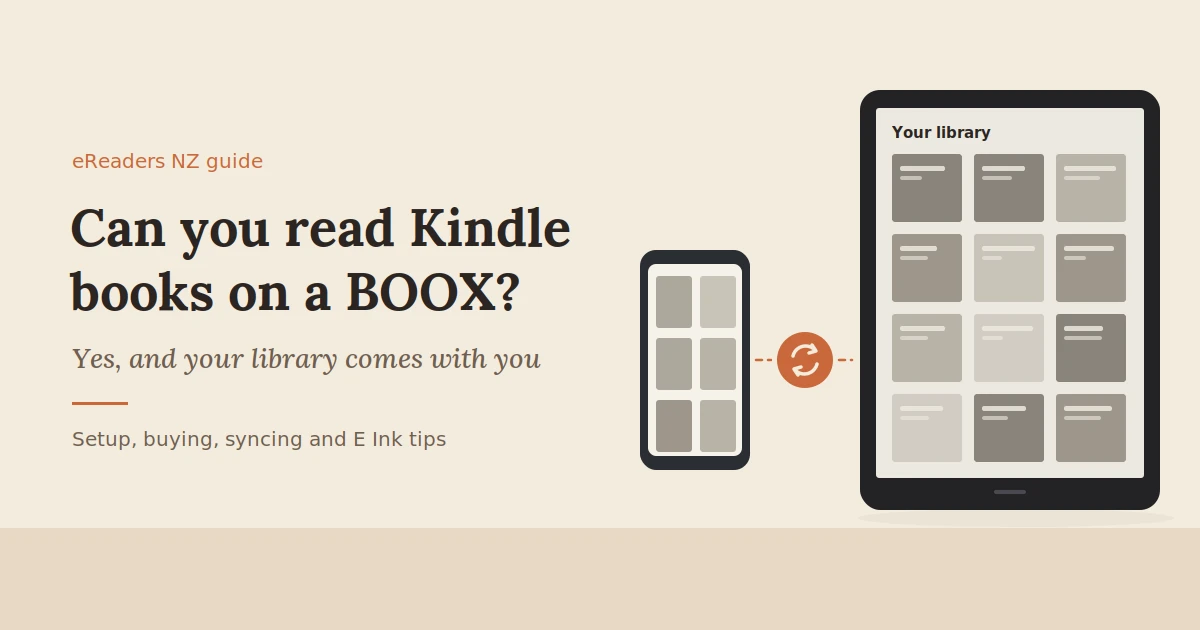
So, can you read Kindle books on a BOOX? Yes. You keep your library, your reading progress and your highlights. But a few things work differently from a Kindle device, especially how you buy new books.
This guide explains exactly what to expect, how to set it up, and how to make the Kindle app feel at home on E Ink.
The short answer
Yes. Android-based BOOX eReaders and tablets can run the Kindle app from Google Play. Sign in with your Amazon account and your whole Kindle library appears, along with your reading progress and highlights. The main difference is that you’ll generally buy new books on Amazon’s website rather than inside the app.
In short:
- Your library comes with you. Every Kindle book you’ve bought is available in the app.
- Progress and highlights sync between your BOOX, phone and any other Kindle apps.
- Kindle books stay in the Kindle app. They won’t open in BOOX’s own reader.
- Buying is done on Amazon’s website, and new books then appear in the app.
How to set up Kindle on a BOOX
Setting up Kindle on a BOOX takes about ten minutes: make sure Google Play is enabled, install the Kindle app, sign in with your Amazon account, and download the books you want to read. After that, it works like the Kindle app on any phone or tablet.
- Connect to Wi-Fi and sign in with your Google account.
- Enable Google Play if your model asks you to. On some BOOX devices, you switch it on in the settings during setup.
- Install the Kindle app from Google Play.
- Sign in with your Amazon account, the same one you use on your Kindle or phone.
- Download your books. Tap a book in your library to download it to the device, so you can read it offline.
- Check that sync is on, so your reading position and highlights stay in step with your other devices.
- Adjust the display settings for the Kindle app. The “Making the Kindle app feel great on E Ink” section below explains how.
If you get stuck at the Google Play step, your seller can usually walk you through it.
Kindle device vs Kindle app on a BOOX
Reading Kindle books on a BOOX gives you the same library and sync as a Kindle, plus bigger screens, handwritten notes and other reading apps. What you give up is buying books with a tap, and a few features built into Amazon’s own devices.
| Kindle device | Kindle app on a BOOX | |
|---|---|---|
| Your Kindle library | Yes | Yes |
| Buying books | In the built-in store | On Amazon’s website, then synced |
| Kindle Unlimited | Subscribe and read on the device | Subscribe on the website; read in the app |
| Reading progress and highlights sync | Yes | Yes |
| Page-turn buttons | On some models | On some BOOX models, or tap and swipe |
| Screen sizes | Mostly 6–7″, plus Kindle Scribe | 6″ up to 13.3″ |
| Colour | Kindle Colorsoft only | Colour E Ink models available |
| Handwritten notes on your own PDFs | Kindle Scribe only | Most larger BOOX models with a stylus |
| Other stores and apps | No | Kobo, Google Play Books, Libby, Audible and more |
| Set-up | Very simple | A little more set-up |
If you only ever read Kindle books and love one-tap buying, a Kindle is simpler. If you want a bigger screen, notes or other stores and library apps too, a BOOX gives you all of that without leaving your Kindle library behind.
Buying Kindle books from New Zealand
You can’t buy Kindle books inside the Kindle app for Android, including on a BOOX, because of Google Play’s billing rules. Instead, buy them on Amazon’s website in a browser, using the same Amazon account. The book then appears in your Kindle app, usually within a minute or two.
Here’s how it works in practice:
- Browse and buy on Amazon’s website, on your phone, computer or the BOOX’s own browser.
- Choose the Kindle edition and buy it with your usual Amazon account.
- Open the Kindle app on your BOOX and sync your library. The book appears, ready to download.
A few useful tips:
- Add books to your wish list in the Kindle app as you browse samples, then buy them on the website later.
- Samples still work. You can usually download free samples to try before you buy.
- Kindle Unlimited: if it’s available on your Amazon account, subscribe on the website. You can then borrow and read Kindle Unlimited titles in the app on your BOOX.
This isn’t a BOOX limitation. Since 2022, Amazon hasn’t allowed purchases in its Android Kindle app on any phone or tablet, to comply with Google Play’s billing policies.
Making the Kindle app feel great on E Ink
The Kindle app was designed for phones and tablets, so a few settings make a big difference on E Ink. Use BOOX’s per-app display settings for sharper text, turn off page-turn animations in the Kindle app, choose a white background, and set up page-turn buttons if your model has them.
BOOX display settings for the Kindle app
On newer firmware these are called EInkWise; on older models, look for E Ink Center or App Optimization.
- Refresh mode: choose a high-quality mode for crisp text when reading.
- Contrast or dark-colour enhancement: makes thin or grey text darker and easier to read.
- Full refresh: set the screen to fully refresh every few pages to clear any ghosting.
Settings inside the Kindle app
- Turn off page-turn animations if the option is available, so pages change cleanly on E Ink.
- Use a white background rather than a dark theme. It usually looks crisper on E Ink.
- Try volume buttons for page turns. The Kindle app can use volume controls to turn pages, which works with BOOX models that have page-turn buttons or that let you map buttons.
- Pick a font and size you like. E Ink rewards slightly bolder fonts and comfortable margins.
Small habits that help
- Download books before you travel, so you can read offline and turn Wi-Fi off to save battery.
- Keep the app updated through Google Play.
What you can’t do, honestly
Kindle books stay inside the Kindle app, so you can’t open them in BOOX’s own reader or other apps. You also can’t buy books inside the app, and a few features built into Amazon’s own devices behave differently in the app. For most readers these are small trade-offs, but it’s worth knowing them upfront.
- Kindle books won’t open in BOOX’s NeoReader. Purchased Kindle books are protected by Amazon’s DRM and can only be read in the Kindle app.
- No in-app buying. Purchases happen on Amazon’s website, as explained above.
- Some device-only features differ. A few features of Kindle devices, such as Amazon’s own built-in store and certain settings, work differently or aren’t available in the app.
- A little more set-up. A BOOX has more settings than a Kindle. Most people are comfortable within a week, but it’s not quite as plug-and-play.
Why readers move their Kindle library to a BOOX
Many people who switch don’t leave Kindle behind. They bring it with them and add more: a bigger screen for PDFs, handwritten notes, colour options, and other bookstores and library apps on the same device.
- More screen sizes. From a phone-sized Palma to 10.3- and 13.3-inch tablets, which are far better for PDFs, textbooks and comics than a 6-inch Kindle.
- Handwritten notes. Larger BOOX models with a stylus let you take notes and annotate your own PDFs.
- Every store in one place. Read Kindle, Kobo and Google Play Books purchases side by side.
- Library loans. Borrow free ebooks from NZ libraries through Libby or BorrowBox.
- Audiobooks and more. Audible, Spotify and other apps run alongside your reading apps.
A typical example: a reader who has built up books on Kindle, discovers Kobo deals or library loans, and wants one device for all of them.
Libby and NZ libraries: a BOOX advantage
Many New Zealand public libraries lend ebooks through Libby or BorrowBox. On a Kindle device, borrowing from an NZ library through Libby isn’t possible, because Libby’s “send to Kindle” option only works with US libraries. On a BOOX, you simply install Libby or BorrowBox and borrow directly.
That means you can have:
- Your Kindle library in the Kindle app
- Free library loans in Libby or BorrowBox
- Kobo or Google Play Books purchases in their own apps
All on one E Ink screen. For many NZ readers, free library access alone makes the difference.
FAQs
Can you read Kindle books on a BOOX?
Yes. Android-based BOOX devices can install the Kindle app from Google Play. Sign in with your Amazon account and your Kindle library, reading progress and highlights are available, just as they are on a phone or tablet.
Can I buy Kindle books on my BOOX?
Not inside the Kindle app. Since 2022, Amazon hasn’t allowed purchases in its Android Kindle app because of Google Play’s billing rules. Buy books on Amazon’s website in a browser, and they’ll appear in the Kindle app on your BOOX.
Does Kindle Unlimited work on BOOX?
Yes, for reading. If Kindle Unlimited is available on your Amazon account, subscribe on Amazon’s website, then borrow and read Kindle Unlimited titles in the Kindle app on your BOOX.
Will my Kindle highlights and progress sync?
Yes. With sync turned on, your reading position, highlights and notes sync between the Kindle app on your BOOX and your other Kindle devices and apps.
Can I open Kindle books in BOOX’s NeoReader?
No. Purchased Kindle books are protected by Amazon’s DRM and can only be read in the Kindle app. BOOX’s own reader is for EPUB and PDF files and other unprotected documents.
Should I get a Kindle or a BOOX?
If you only read Kindle books and want the simplest device, a Kindle is hard to beat. If you also want a bigger screen, notes, Kobo books or NZ library loans through Libby, a BOOX lets you do all of that while keeping your Kindle library.
Keep your Kindle library, gain everything else
Moving to a BOOX doesn’t mean starting over. Your Kindle books come with you, and you gain bigger screens, handwritten notes, NZ library loans and every other reading app you use, all on a paper-like display.
Explore Android-based BOOX eReaders at eReaders NZ. Not sure which model suits your reading? Get in touch with our New Zealand team, and we can help you set up Kindle on your new BOOX.