You have bought (or you’re about to buy) a BOOX tablet. And now you are staring at your Kindle library 200+ books, thousands of dollars invested over years of Amazon purchases wondering if switching to BOOX means abandoning all of it.
BOOX Tablet NZ
The good news is way simpler than most articles make it seem. This guide covers how to move your Kindle library to a BOOX tablet using fully legal methods, what to do about your personal documents and notes, and which alternative ebook stores NZ readers should consider going forward. No panic required for most Kindle users, the solution takes about 5 minutes.
The 30-second answer you don’t actually need to “move” anything
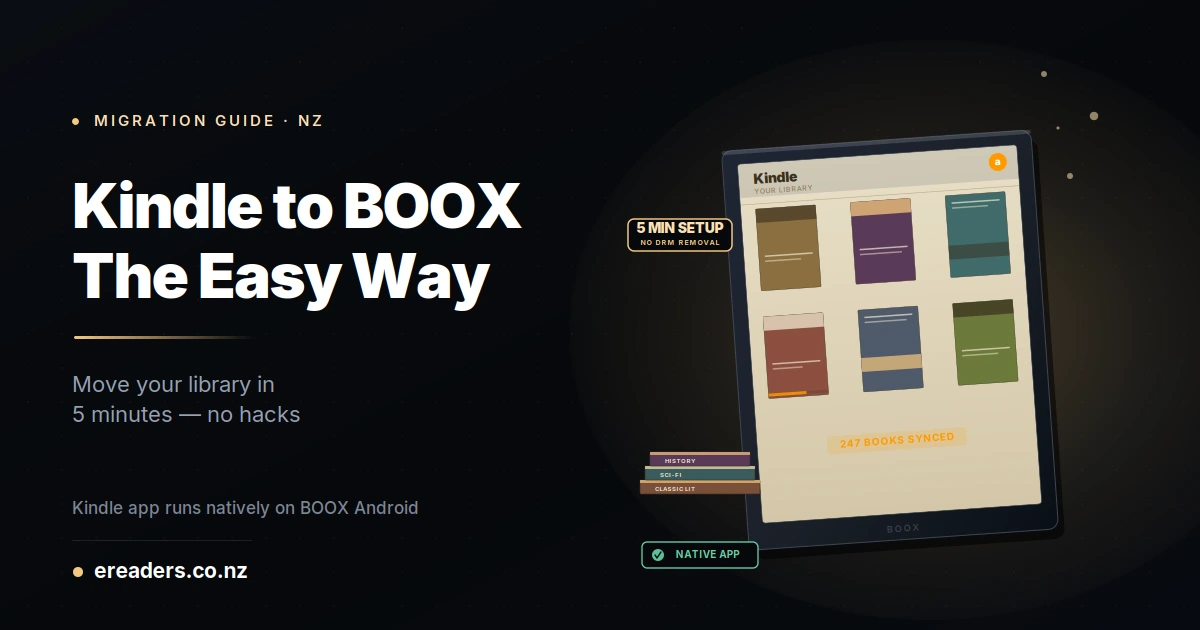
BOOX tablets run Android OS, which means the official Kindle app installs directly from the Google Play Store. Once installed and signed into your Amazon account, your entire Kindle library appears same books, same syncing, same reading position across devices.
No file conversion. No DRM removal. No library migration required. For most Kindle users, this is the entire answer to the question. Read on if you want to know what else changes, but this is the core.
Why the Kindle app on BOOX works so well (it’s not a hack)
BOOX tablets run a customised version of Android with Google Play Store support on most current models. The Kindle Android app was designed to run on any Android device a BOOX tablet is just an Android device with an E Ink display instead of an LCD screen. Amazon actively supports this use case; it’s not a workaround.
What “runs Android” means for your reading options
Because BOOX is Android-based, your BOOX tablet can run any Android app Kindle, Kobo, Google Play Books, Libby, Overdrive, Pocket, Reeder, Instapaper, and dozens of other reading and library apps. This is genuinely a bigger ecosystem than a Kindle offers, not a smaller one.
Which BOOX models support Google Play Store
Almost all current BOOX tablets sold in NZ ship with Google Play Store enabled by default including the Note Max, Note Air 4 C, Tab X C, and Go 10.3. On models where Play Store isn’t pre-enabled, you can activate it through the BOOX Apps settings menu in about 2 minutes.
How the reading experience differs from a real Kindle
Reading Kindle books on a BOOX feels 90% identical to a Kindle. Same page-turn taps, same font controls, same bookmarking, same highlights. The 10% difference: page turns are marginally slower on BOOX (fraction of a second), and Amazon’s proprietary “buttons” don’t map to BOOX’s physical buttons unless you configure them. Neither is a dealbreaker for most readers.
Step-by-step installing the Kindle app on your BOOX
Installation takes about 5 minutes. Two paths depending on your BOOX model: Google Play Store (easiest, works on most modern BOOX tablets) or APK sideload (fallback for models without Play Store enabled). Either way, sign into your Amazon account after install and your library appears immediately.
Method 1: Google Play Store installation (recommended)
- Open the Apps menu on your BOOX tablet
- Tap Google Play Store
- Sign into your Google account (or create one if needed)
- Search “Kindle” and install the official Amazon app
- Open Kindle, sign into your Amazon account
- Your library syncs automatically books appear within seconds
This is the standard method. Works on Note Max, Note Air 4 C, Tab X C, Go 10.3, and most current-generation BOOX tablets sold on ereaders.co.nz.
Method 2: APK sideload from Amazon’s Android app store
If Google Play Store isn’t available on your BOOX (rare on modern models), you can sideload the Kindle APK directly from Amazon’s Android app store. Enable “Install unknown apps” in your BOOX settings, then download the APK from Amazon’s website. Slightly more technical but not difficult takes about 10 minutes.
Optimising Kindle app settings for E Ink display
Once installed, tweak these Kindle app settings for the best E Ink reading experience:
- Set page-turn animation to “None”: E Ink handles instant page changes better than animated fades
- Choose a serif font: Amazon Ember or Bookerly render cleanly on E Ink
- Disable page-turn preview: reduces refresh overhead
- Turn off reading progress animations: cleaner E Ink display
What transfers, what doesn’t
Your books, syncing, purchases, samples, and Whispersync work perfectly on BOOX. Reading position transfers across devices. But some Kindle-specific features have caveats X-Ray, Word Wise, and physical button controls don’t translate exactly.
| Feature | Works on BOOX Kindle App? |
|---|---|
| Purchased Kindle books | ✅ Full library access |
| Kindle Unlimited subscription | ✅ Full access to KU catalog |
| Reading position sync (Whispersync) | ✅ Syncs across all your devices |
| Highlights and notes | ✅ Sync to Amazon cloud |
| Collections | ✅ Visible and manageable |
| Send to Kindle personal documents | ✅ Full functionality |
| X-Ray character lookups | ⚠️ Yes, but slightly slower to load |
| Word Wise vocabulary hints | ⚠️ Works but layout varies |
| Amazon audiobook (Whispersync for Voice) | ⚠️ Requires Audible app separately |
| Physical page-turn buttons | ❌ Not mapped use touch or configure BOOX buttons |
| Amazon “buy now” in-app purchases | ❌ Amazon removed globally on all Android devices |
The only genuinely missing feature is in-app buying but Amazon removed this on all Android Kindle apps, not just BOOX. Buy your books via a browser at Amazon.com.au, and they’ll appear on your BOOX Kindle app within seconds via Whispersync.
Handling personal documents (PDFs, EPUBs, DOCX files)
Personal documents work even more flexibly on BOOX than on Kindle. BOOX supports native EPUB, PDF, DOCX, TXT, MOBI, and dozens of other formats directly no conversion needed. Transfer via USB cable, cloud services (Dropbox, Google Drive, OneDrive), or the built-in BooxDrop wireless transfer.
Native format support on BOOX vs Kindle
Kindle handles PDFs poorly, doesn’t support EPUB natively, and requires conversion for most personal formats. BOOX handles all of these natively with excellent PDF annotation, EPUB reflow, and DOCX text editing. If you have a large personal document library, BOOX is genuinely a significant upgrade.
Transferring your existing personal document library
Two easy paths:
- USB cable transfer: connect your BOOX to a computer, drag files into the Books folder
- Cloud sync: install Dropbox/Google Drive on your BOOX and access your document library from anywhere
For libraries with hundreds of files, cloud sync is faster and keeps everything backed up automatically.
Send to BOOX (the equivalent of Send to Kindle)
BOOX offers “BooxDrop” and “Send to BOOX” services that let you email documents directly to your tablet same convenience as Amazon’s Send to Kindle, without the file-size limits or format restrictions. Setup takes 2 minutes.
Buying new ebooks beyond the Amazon ecosystem
BOOX opens up ebook stores that Kindle owners have never had access to. Kobo, Google Play Books, Apple Books (via workarounds), local library apps (Libby, OverDrive), and public-domain stores all install as Android apps. For NZ readers specifically, this often means more choice and better pricing than Amazon.com.au provides.
Best alternative ebook stores for NZ readers
- Kobo: Rakuten-owned, strong NZ presence, often better local pricing than Amazon
- Google Play Books: huge catalog, purchases sync across all your Android devices
- Apple Books: accessible via Safari/workarounds (limited direct Android app)
- Libby / OverDrive: free ebook borrowing from your NZ public library
- Standard Ebooks / Project Gutenberg: free public-domain classics
Libby and Overdrive free ebooks from NZ public libraries
Auckland Council Libraries, Christchurch City Libraries, Wellington City Libraries, and virtually every NZ public library offer free ebook borrowing via Libby. Install the app on your BOOX, sign in with your library card, and you have access to thousands of ebooks and audiobooks at no cost.
For any NZ reader who hasn’t discovered Libby yet, this alone can save $500+ per year on ebook purchases.
Public domain and free ebook sources
Books published before 1930 are typically in the public domain and available free. Standard Ebooks provides beautifully-formatted classics; Project Gutenberg has the largest catalog. Both work perfectly on BOOX’s native reader.
The DRM question what you can and can’t do
Kindle books have DRM (Digital Rights Management) protection, which technically restricts them to Amazon’s own reading apps. DRM removal exists in a legal grey area Amazon’s Terms of Service prohibit it, and while enforcement is rare for personal use, it’s not something we walk through here.
For most BOOX users, the Kindle Android app makes DRM removal unnecessary anyway. Your Amazon library works fine through the official app; you’re not blocked from your purchases.
Why we don’t provide DRM removal instructions
Two reasons. First, DRM removal violates Amazon’s Terms of Service publishing step-by-step instructions could expose ereaders.co.nz to legal claims. Second, for the overwhelming majority of BOOX users, the Kindle app solves the problem completely without any grey-area steps. There’s no practical need for the risk.
When DRM-free alternatives make more sense
If DRM concerns you philosophically (or if you want a truly portable library that isn’t tied to any single retailer), buying from DRM-free stores going forward is the cleaner solution. Standard Ebooks (public domain), Smashwords (indie authors), and Tor Books’ DRM-free purchases give you EPUB files you can read on any device, forever, without depending on any company’s continued goodwill.
The moral vs legal question
Most readers land somewhere pragmatic: keep buying Kindle books through Amazon (convenient, cheap), read them via the Kindle app on BOOX (works fine), and don’t worry about DRM until Amazon actually does something that harms you. That’s a reasonable position.
NZ-specific considerations for Kindle-to-BOOX migration
A few factors specific to New Zealand shift the migration decision. Amazon.com.au serves the NZ market for Kindle purchases, meaning your existing library is technically under an Australian account. NZ has strong public library ebook support via Libby, and Kobo has better NZ pricing on many titles than Amazon.com.au.
Amazon.com.au account and NZ Kindle library ownership
Most NZ Kindle users have an Amazon.com.au account (Amazon closed Kindle service on Amazon.com for many international regions years ago). Your library remains fully yours the Kindle app on BOOX works identically whether your account is Amazon.com.au, Amazon.com, or Amazon.co.uk. Just sign in normally.
Kobo vs Kindle for NZ readers going forward
For new purchases, Kobo often beats Amazon on price for NZ readers Rakuten has stronger local pricing agreements, and Kobo integrates natively with many NZ public library systems via OverDrive. Once you’re on BOOX, running both Kindle AND Kobo apps side-by-side is genuinely practical.
NZ public library digital lending a genuine Kindle-alternative
Between Libby (Overdrive), BorrowBox, and cloudLibrary, NZ public libraries offer thousands of free ebooks and audiobooks. For readers with active library cards, this alone often eliminates the need to buy 60-80% of casual reading titles. BOOX supports all these apps; older Kindles do not.
Common problems and solutions
Five patterns cover most Kindle-on-BOOX setup issues:
- Kindle app running slowly on E Ink: disable page-turn animations in Kindle settings; typically fixes it
- Google Play Store not visible: enable it in BOOX Apps settings; some older models require the manual activation
- APK download failing: check available storage and try a different browser (Chrome or Firefox usually work)
- Whispersync not syncing: Amazon account issue, not BOOX; sign out and back in on the Kindle app
- Highlights appearing with different formatting: rendering quirk between Kindle app versions; content is intact, formatting is cosmetic
Any of these can be resolved in 5 minutes or less. If your issue isn’t listed, the ereaders.co.nz support team handles Kindle-on-BOOX questions daily.
FAQs
Can I really read my Amazon Kindle books on a BOOX tablet?
Yes. BOOX tablets run Android, and the official Amazon Kindle app installs directly from Google Play Store. Sign into your Amazon account, and your entire Kindle library appears with full syncing, highlighting, and reading position tracking.
Do I need to remove DRM from my Kindle books to use them on BOOX?
No. The Kindle Android app on BOOX accesses your DRM-protected books through Amazon’s official app, exactly as intended. DRM removal isn’t necessary and isn’t recommended given Amazon’s Terms of Service restrictions.
Which BOOX tablets support Google Play Store?
Almost all current BOOX tablets sold in NZ Note Max, Note Air 4 C, Note Air 5 C, Tab X C, Go 10.3, and the Go 7 series. On models where Play Store isn’t pre-enabled, you can activate it through the BOOX settings menu in a few minutes.
Can I use Kindle Unlimited on my BOOX?
Yes. Kindle Unlimited works through the same Kindle Android app. Sign in with your KU-enabled Amazon account and browse the KU catalog normally. Same books, same subscription, no additional cost.
Will my highlights and notes sync between Kindle and BOOX?
Yes. Highlights and notes made through the Kindle app on BOOX sync to Amazon’s cloud and appear on your other Kindle devices (physical Kindles, Kindle iOS app, etc.). Whispersync also keeps your reading position current across devices.
Is it legal to read Kindle books on a non-Kindle device?
Yes, through Amazon’s official Kindle app. Amazon makes the app available specifically so you can read your purchased books on multiple platforms. What’s grey-area is stripping DRM from Kindle files; using the official app is entirely legitimate.
What happens to my Kindle books if Amazon closes my account?
This is a real concern for any DRM-protected library. If Amazon closes your account, your access to Kindle purchases ends with or without a BOOX tablet. For books you consider essential, buying DRM-free alternatives (or borrowing via library apps) removes this risk entirely.