BOOX troubleshooting usually comes down to three problems: Google Play won’t open, Wi-Fi keeps dropping, or the screen freezes mid-chapter. Most of these can be fixed at home in a few minutes using the official BOOX steps below, before you need to contact support.
What Is BOOX Troubleshooting?
BOOX troubleshooting is the set of checks and fixes for common faults on BOOX eReaders and E Ink tablets. It covers Google Play activation, Wi-Fi drops, network errors in apps and frozen or unresponsive screens.
BOOX devices work differently from a Kindle or a standard Android tablet. They run open Android, but Google Play must be switched on manually by registering a GSF ID (Google Services Framework ID, a unique code that links the device to your Google account). They also use E Ink, a paper-like display, so settings and fixes don’t always match what you’d expect from a phone or iPad.
Common BOOX Problems and How to Fix Them
1. Google Play Not Opening
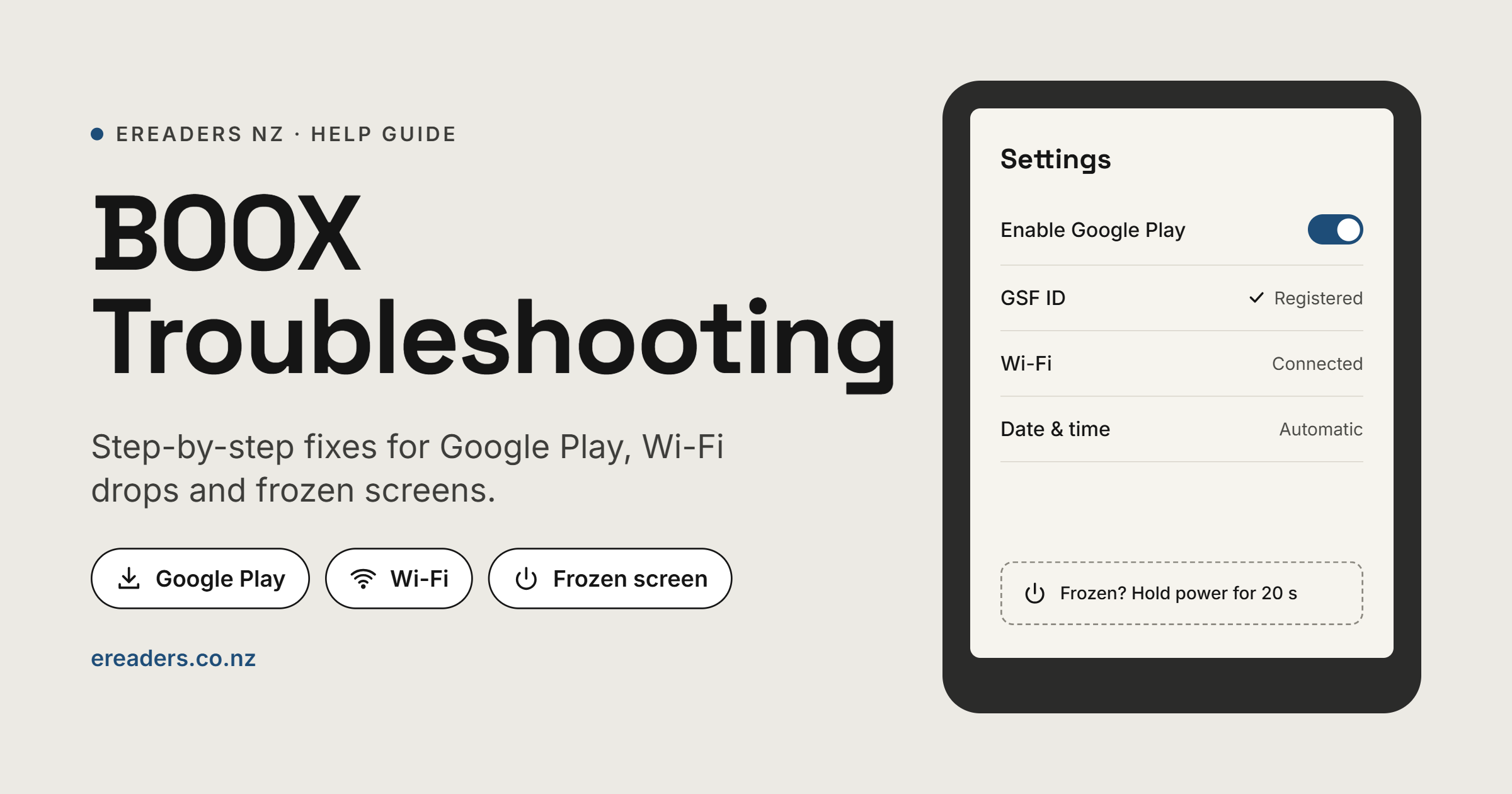
On firmware 3.2 or later, go to Apps > App Management > Enable Google Play, then tap GSF ID to register your BOOX with your Google account. Activation can take 1 to 48 hours, so restart the device and try signing in again after waiting.
2. Enable Google Play Missing
If the Enable Google Play option doesn’t appear, go to App Management > App Info > ContentBrowser > Storage & cache and tap Clear Storage. Google Play should then work without manual activation.
3. Wi-Fi Keeps Disconnecting
Go to Settings > Date & Time (Settings > System Settings > Date and Time on Tab models), toggle “Automatically set Date and Time” off and on, and check your time zone is correct. Then restart your BOOX and your router, long-press the network name, choose “Do not save” and reconnect with your password.
4. Apps Show Network Errors
If apps display “Network or Server Error”, connect to your phone’s hotspot or another Wi-Fi network to see whether the problem is your router. If the hotspot works, remove special characters from your Wi-Fi name and make sure the router isn’t blocking your BOOX’s MAC address.
5. Screen Frozen or Unresponsive
Plug your BOOX into a power adapter with a USB-C cable and let it charge for several hours. Then press and hold the power button for 20 seconds to force a reboot.
6. Touch Screen Not Responding
Check that touch hasn’t been switched off in the dropdown panel or the app toolbar. If it still doesn’t respond, restart the device.
Common Situations for New Zealand BOOX Owners
- Home fibre from Spark, One NZ or 2degrees: if your network name includes symbols or emoji, rename it with plain letters and numbers, then reconnect.
- Dual-band and mesh routers: check your model’s product page for supported Wi-Fi bands. The Go 10.3 (Gen II), for example, lists both 2.4 GHz and 5 GHz.
- Public Wi-Fi at libraries, cafés and airports: if apps show errors, test on your home network or phone hotspot to rule out the venue’s connection.
- Rural and remote connections, including Starlink: a quick hotspot test shows whether the issue is your BOOX or the connection.
- Commuting and long-haul flights: download books before you leave home in Auckland, Wellington or Christchurch, so a dropped signal on the bus, train, ferry or plane doesn’t interrupt your reading.
- Reading at the bach: set up Google Play and install your apps at home first, as registration can take up to 48 hours.
- Students at school and uni: campus networks often need extra login details, and BOOX publishes a separate guide for campus and company networks.
- Borrowing library eBooks: apps like Libby install through Google Play, so complete activation before you plan to borrow.
How Much Does a BOOX eReader Cost in New Zealand?
At the time of writing, entry-level BOOX Go Series readers start at NZ$319.99 for the Go 6 and NZ$427.99 for the Go 6 (Gen II). Mid-range models run from NZ$534.99 for the Go 7 to NZ$766.42 for the Go 10.3 (Gen II). Premium tablets in the BOOX Note Series and BOOX Tab Series range from NZ$1,028.99 for the Tab Ultra C Pro to NZ$1,538.99 for the Tab X C 13.3, with all prices including GST.
FAQs
Can I use Google Play on a BOOX eReader?
Yes. On firmware 3.2 or later, go to Apps > App Management > Enable Google Play, then tap GSF ID to register your device with your Google account.
Does Google Play work straight away after I register the GSF ID?
Not always. Registration can take between 1 and 48 hours, so restart your BOOX and try signing in again after waiting.
Can the wrong date and time stop my BOOX connecting to Wi-Fi?
Yes. BOOX lists date and time settings as a fix for Wi-Fi and app network errors, so toggle automatic date and time and confirm your time zone is correct.
Can a phone hotspot help me fix BOOX Wi-Fi problems?
Yes. Connecting to your phone’s hotspot shows whether the fault lies with your BOOX or your home router, and BOOX recommends it as the first check.
Will a forced reboot delete the books on my BOOX?
No. Holding the power button for 20 seconds restarts the device without erasing your data; only a factory reset deletes your files and settings.
Conclusion
Most BOOX troubleshooting comes down to activating Google Play correctly, resetting your Wi-Fi settings or forcing a reboot. Work through the fixes above in order, and if your device still isn’t working, contact the eReaders NZ team on +64 9 320 4764 or contact@ereaders.co.nz with your order receipt and serial number. A few minutes of checks can get you back to reading sooner.