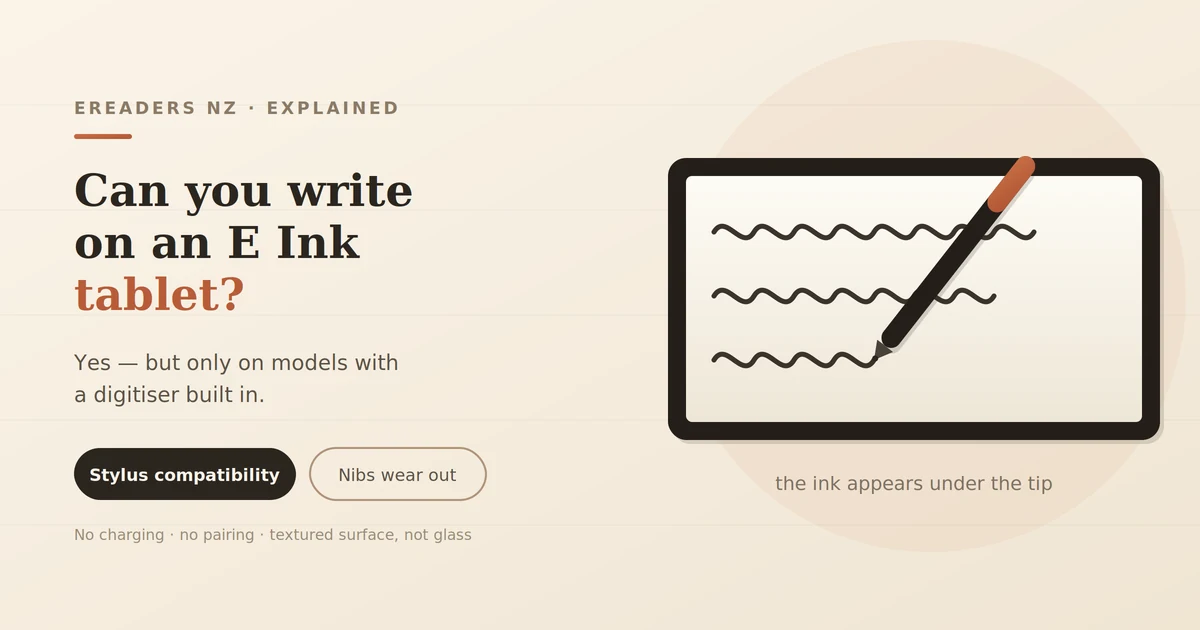
You’ve seen the video. Someone drags a pen across a grey screen, ink appears under the tip, and it looks convincingly like paper. Which raises the obvious question: is that real, or is it a well-lit demo running at half speed?
It’s real. But the answer to whether you can write on an E Ink tablet has a condition attached: only on devices built for it. Writing needs a hardware layer underneath the screen that most e-readers don’t have and can’t be given later. Buy the wrong device and no accessory fixes it.
Here’s what writing on E Ink is actually like, and what to check before you buy.
Can you write on an E Ink tablet?
Yes, on devices with a built-in digitiser and a supported stylus. Those are usually sold as note-taking tablets rather than e-readers, and they start around 7 inches with most sitting at 10.3 inches.
You cannot write on a basic e-reader. A standard Kindle, or any reader without a digitiser, has no way to sense a pen. There’s no app, no firmware update and no third-party stylus that changes that. The hardware either exists in the device or it doesn’t.
So the first question isn’t “which pen do I buy.” It’s “does this device support writing at all.”
How writing on E Ink actually works
Two separate systems working together. A sensing layer beneath the display detects the pen’s position and pressure, and the screen redraws the stroke behind the tip as you move.
EMR styluses and why they need no charging
Most E Ink note-taking devices use electromagnetic resonance. The tablet generates a field, and the pen draws its power from that field rather than a battery.
The practical upshot is excellent: no charging, no pairing, no Bluetooth, no dead pen at the worst moment. Pick it up and write. If you’ve dealt with a flat Apple Pencil before a meeting, this is the better arrangement.
The trade-off is compatibility. EMR pens aren’t universally interchangeable, and manufacturers have changed pen standards between generations. More on that below.
Why the screen feels like paper
Two things create the sensation. The display surface is matte and slightly textured rather than smooth glass, so the nib meets resistance as it moves. And the nib itself is a firm plastic tip that wears against that texture.
Together they produce friction that your hand reads as paper. It’s the single most-cited reason people prefer writing on E Ink over a glass tablet, and it’s a physical property rather than a software effect.
If you want the mechanism behind the screen itself, our explainer on how E Ink technology works covers the microcapsules doing the actual drawing.
What it’s genuinely like to write on
Honest version, because the marketing overstates it.
It’s slower than an iPad. There’s visible lag between the nib and the ink small on current devices, but present. Write quickly and the line catches up a fraction behind your hand. Most people stop noticing within a week; some never do.
The surface is better than glass. No skating, no squeak, real resistance. This is where E Ink wins decisively for anyone who writes a lot.
It’s greyscale. Your notes are black or grey. Some devices offer colour, but muted. If you colour-code heavily, know that going in.
It’s not paper. It’s close enough that the comparison is fair, but a fountain pen on good paper is a different experience. Anyone claiming otherwise is selling.
The fair summary: slightly slower and less responsive than a tablet, considerably more pleasant to write on, and good enough that a lot of people stop carrying notebooks.
E Ink vs iPad vs paper
| E Ink tablet | iPad + Pencil | Paper notebook | |
|---|---|---|---|
| Writing feel | Textured, paper-like | Smooth glass | The benchmark |
| Latency | Slight, noticeable | Minimal | None |
| Colour | Greyscale or muted | Full | Whatever pen you own |
| Battery | Days to weeks | Hours | None needed |
| Pen charging | Not required (EMR) | Required | |
| Distraction | Almost none | High | None |
| Searchable later | Yes | Yes | No |
| Eye comfort over hours | High | Moderate | High |
| Cost | Mid to high | High | Low |
Paper belongs in that table because it’s the real competitor. If searchability and carrying hundreds of pages don’t matter to you, a notebook and a decent pen is a perfectly rational choice that costs a fraction as much.
Which devices you can actually write on
Stylus support varies within a single brand’s range, so check the specific model rather than assuming.
What to look for on a spec sheet:
- Stylus or pen support listed explicitly. If it isn’t mentioned, assume it isn’t there.
- Which pen it takes, by name. This matters more than you’d think.
- Whether the pen is included or sold separately.
- Screen size. Below about 10 inches, sustained writing gets cramped. A 7-inch device handles quick annotations fine but isn’t a notebook replacement.
- Pressure levels, if line weight variation matters to you.
For most people wanting a genuine notebook replacement, 10.3 inches is the practical size close to A4, comfortable for a page of writing, still portable. Larger devices are better for marking up documents and heavier to carry.
The stylus: what to know before you buy
Three things catch people out.
Pen compatibility changes between generations. Manufacturers have switched pen technologies, so a stylus from an older device or a friend’s spare may not work on a current one. Confirm the exact pen your model takes before buying either separately.
It may not be included. On several devices the pen is a separate purchase, which changes the real cost of the setup. Check what’s in the box.
Pressure sensitivity and tilt affect how expressive the line is. For note-taking, it barely matters. For sketching, it matters a lot.
Nibs wear out plan for it
Here’s the thing almost nobody mentions, and the thing new owners discover three months in.
The nib is a consumable. It’s a plastic tip dragging against a textured surface, so it wears down exactly as a pencil does slowly, then noticeably. A worn nib feels scratchy, loses precision, and in extreme cases can be rough on the screen’s surface layer.
Most devices ship with spare nibs and a small removal tool in the box. Check how many you got, because that determines when you need to think about it.
Signs it’s time to change:
- The tip looks visibly flattened or angled
- Writing feels scratchy rather than smooth
- Line precision has drifted
- You’re pressing harder than you used to
Handwriting recognition: what works and what doesn’t
Most note-taking devices can convert handwriting to typed text. It’s good, not perfect, and how good depends heavily on your handwriting.
Works well: neat printing, consistent letter spacing, standard English words, writing at a relaxed pace.
Works less well: cursive, messy writing under time pressure, mathematical notation, mixed diagrams and text, technical or unusual terms.
There’s a more useful feature that gets less attention: searchable handwriting. Rather than converting your notes to text, the device indexes them so you can search for a word and find the page where you wrote it while the notes stay in your own hand.
For most people that’s the better tool. You keep the speed and freedom of handwriting, and you can still find the meeting where someone mentioned the budget figure.
Where your notes end up
The pen feel is what people ask about. The export path is what actually determines whether the device works for you.
Check three things before buying:
- Export formats PDF, image, or text. PDF is the most universally useful.
- Cloud sync most devices connect to Google Drive, Dropbox and OneNote. If your workplace runs Microsoft 365, check OneNote specifically rather than assuming.
- PDF annotation export if you mark up a document, do the annotations travel with the file when it moves to your laptop, or stay trapped on the device?
If your notes need to end up in a document you’re writing elsewhere, that last one matters more than anything about the pen.
What it replaces well, and what it doesn’t
Strong at:
- Meeting notes you’ll want to find again
- PDF markup and document review
- Journaling and planning
- Working through problems where sketching helps
- Reading and annotating in one place
Weak at:
- Colour-heavy work diagrams, design, mind maps with colour coding
- Anything needing speed and instant response
- Typing-heavy work, where a laptop wins easily
- Sketching and illustration, where an iPad is better
The honest framing: it’s a notebook replacement, not a tablet replacement. Buy it to stop carrying paper, not to stop carrying a laptop.
Buying nibs and styluses in New Zealand
Small accessories are where importing hurts most. A replacement nib pack or a spare stylus weighs almost nothing and costs little, but shipping it from overseas can cost more than the part and take weeks.
Worth sorting before you need it:
- Know which pen and nib type your device takes write it down now, not when the tip has worn flat
- Check what came in the box. Spare nibs are often included and easily lost.
- Buy a spare pen if you rely on it daily. Pens get left in meeting rooms.
Buying from a retailer holding local stock matters more for consumables than for the device itself. The tablet arrives once; the nibs are an ongoing thing.
FAQs
Can you write on a Kindle?
Not on a standard Kindle it has no digitiser. Some larger writing-focused models support a pen, but the regular reading models don’t and can’t be upgraded.
Does the stylus need charging?
Most E Ink styluses use EMR technology and draw power from the tablet, so they never need charging or pairing.
How long do nibs last?
It depends on how hard you press and how much you write. They’re consumables, like pencil leads check yours periodically and replace when writing feels scratchy.
Does E Ink handwriting convert to text?
Usually yes, with good accuracy on tidy printing and less on cursive or rushed writing. Searchable handwriting is often the more useful feature.
Is writing on E Ink as fast as paper?
Close, but not identical. There’s slight lag, and most people adjust within a week. The surface friction feels better than glass.
Can you use any stylus on an E Ink tablet?
No. Pen compatibility is specific to the device and has changed between generations, so confirm the exact pen your model supports.
Is a 7-inch device big enough to write on?
For quick annotations, yes. For a page of notes, it’s cramped 10.3 inches is the practical minimum for a notebook replacement.
Say what you’d use it for
The answer to “can you write on an E Ink tablet” is yes, but the more useful question is whether it suits the way you actually work.
Tell us what you’d be writing meeting notes, PDF markup, journaling, study and we’ll give you an honest answer on whether it’s worth it, which size fits, and what the pen situation is for that model. Sometimes the answer is that a notebook does the job fine. You can look through the range of E Ink devices available in New Zealand while you think about it.