Your new BOOX is charged and ready. On your laptop sits a folder of EPUB files: classics from Project Gutenberg, DRM-free purchases, maybe a Calibre library you’ve built up over years. Now you just need to get them across.
How to Transfer EPUB Files to BOOX
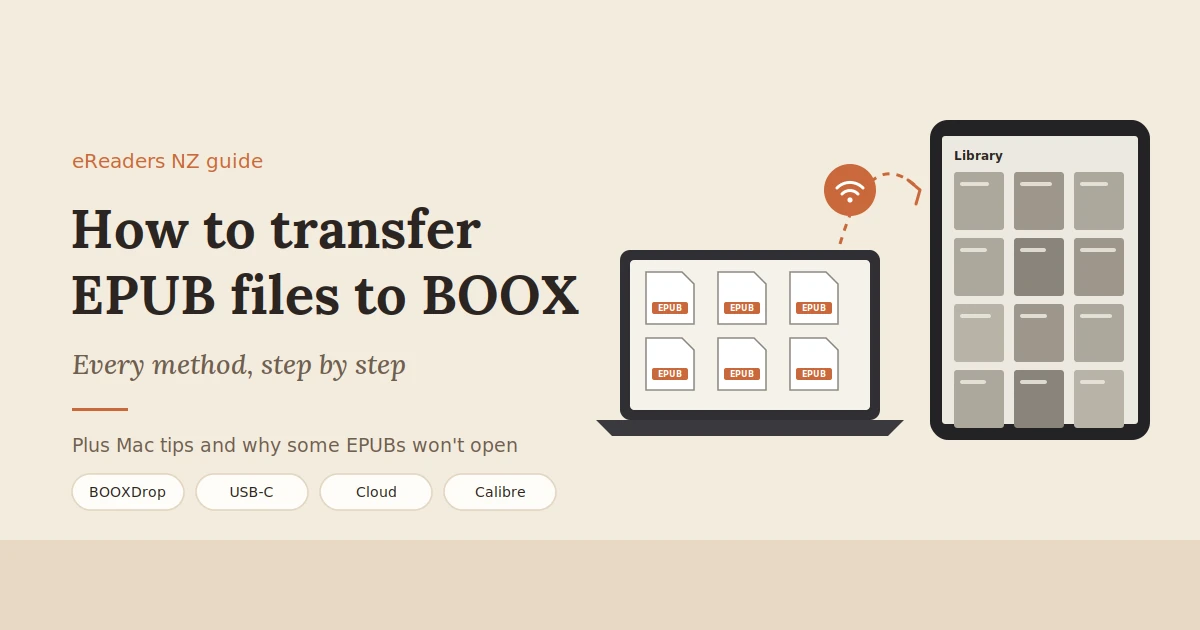
If you’re wondering how to transfer EPUB files to a BOOX, there are several ways, from a quick wireless upload to a plain USB cable. The right one depends on your computer, how many books you’re moving, and whether you want your library to stay in sync.
This guide walks through every method step by step, plus the two problems that trip people up most: Macs and DRM-protected books.
The short answer
The quickest way is BOOXDrop. Open it on your BOOX, visit the address it shows in your computer’s browser on the same Wi-Fi network, and drag your EPUB files across. You can also use a USB-C cable, cloud storage, email or a microSD card. DRM-protected EPUBs need their store’s app instead.
In short:
- Easiest: BOOXDrop over Wi-Fi, with no cables or extra software.
- Most reliable for huge libraries: a USB-C cable on Windows.
- Best for keeping things in sync: cloud storage like Google Drive or Dropbox.
- If a book won’t open: it’s probably DRM-protected, so read it in the store’s own app.
Transfer methods compared
There are six main ways to get EPUB files onto a BOOX. BOOXDrop is the easiest for most people. A USB cable is fastest for very large libraries on Windows. Cloud storage keeps your books synced across devices. Email, microSD and Calibre each suit particular setups.
| Method | Needs a computer? | Needs Wi-Fi? | Best for |
|---|---|---|---|
| BOOXDrop | Yes, or a phone browser | Yes, the same network as your BOOX | Most people; quick wireless uploads |
| USB-C cable | Yes | No | Very large libraries, especially on Windows |
| Cloud storage (Google Drive, Dropbox, OneDrive) | No | Yes | Keeping a library synced across devices |
| Email attachment | No | Yes | Sending the odd book from your phone |
| microSD card | Yes, to load the card | No | Models with a card slot; huge collections |
| Calibre | Yes | Depends on the method | People who manage a big library in Calibre |
Method 1: BOOXDrop over Wi-Fi (recommended)
BOOXDrop is a built-in BOOX app for transferring files between your BOOX and a computer over your home Wi-Fi. There’s no software to install. Open it on the BOOX, then use the address it shows in your computer’s browser to upload EPUB files. It’s BOOX’s own recommended way to transfer files.
- Connect both devices to the same Wi-Fi network. Your BOOX and your computer need to be on the same home network.
- Open BOOXDrop on your BOOX. You’ll find it in the app list or the quick settings panel, depending on your model and firmware.
- Note the web address it shows. BOOXDrop displays an address for you to open on your computer.
- Open that address in your computer’s browser. You can also sign in to your BOOX account at push.boox.com to reach the same page.
- Drag your EPUB files into the browser window. They upload straight to your BOOX.
- Open the Library on your BOOX to find your new books.
Tips for big libraries:
- Upload in batches of a few dozen books, rather than hundreds at once.
- Keep the BOOX awake and on the BOOXDrop screen while files upload.
- Check your router. Some guest or public networks block devices from seeing each other, so use your main home network.
BOOXDrop also works in reverse, so you can download notes and annotated PDFs from your BOOX to your computer.
Method 2: USB-C cable
A USB-C cable is the most dependable way to move a large library, especially from a Windows PC: plug in, then drag your EPUB files onto the BOOX like a USB drive. Macs need a little extra help, because macOS doesn’t natively support the file transfer method Android devices use.
On Windows
- Connect your BOOX to your PC with a USB-C data cable.
- If your BOOX asks how to use the connection, choose file transfer.
- Open File Explorer. Your BOOX appears as a device.
- Open its internal storage and drag your EPUB files into a folder, such as Books.
- Eject the BOOX safely and unplug it.
If nothing appears, try a different cable. Some cheap cables only charge and don’t carry data.
On a Mac
Android devices, including BOOX, transfer files using a protocol called MTP, which macOS doesn’t support out of the box. Your options:
- Use BOOXDrop instead. For most Mac users, it’s the simplest answer.
- Use a free MTP app such as OpenMTP to browse your BOOX’s storage and copy files across.
- Use cloud storage, as described below.
Google’s old Android File Transfer app for Mac is no longer maintained, so a current tool like OpenMTP, or BOOXDrop, is usually the better choice.
Method 3: Cloud storage (Google Drive, Dropbox, OneDrive)
If your EPUB library lives in Google Drive, Dropbox or OneDrive, install the app on your BOOX from Google Play, sign in, and download books to the device. This works anywhere with Wi-Fi, needs no computer, and keeps your library backed up.
- Upload your EPUB files to a folder in your cloud storage, such as “eBooks”.
- Install the matching app on your BOOX from Google Play.
- Sign in and open your eBooks folder.
- Download the books you want to the BOOX, or mark them available offline.
- Open them in the BOOX Library, or open each one with BOOX’s reader.
Some BOOX models can also link cloud storage accounts directly in their settings or library, so you can browse files without a separate app. Check your device’s menus.
This approach is ideal if you add books often from different devices, such as downloading a free classic on your phone and reading it on your BOOX that evening.
Other ways: email, microSD and Calibre
For occasional books, emailing yourself an EPUB is quick. For huge collections, a microSD card works on BOOX models with a card slot. And if you manage your library in Calibre, its built-in content server lets your BOOX download books over Wi-Fi.
Email the EPUB to yourself, open the message in the Gmail or email app on your BOOX, and download the attachment. Then open it from your Downloads folder or the BOOX Library. It’s handy for a single book from your phone, but slow for many.
microSD card
Some BOOX models, including the Palma series and the Note Air4 C, have a microSD slot. Copy your EPUBs onto a card using your computer, insert it into the BOOX, and open the books from the card. It’s a good way to carry a very large library without filling the internal storage.
Calibre
Calibre is a free ebook manager many readers use to organise their EPUB libraries. To get books from Calibre to your BOOX:
- Use Calibre’s content server. Turn it on in Calibre, then open the address it shows in your BOOX’s web browser and download books directly over Wi-Fi.
- Send via BOOXDrop or USB. Select books in Calibre, save them to a folder, then upload that folder with BOOXDrop or a USB cable.
- Try the community BOOXDrop plugin. A third-party Calibre plugin can send books to a BOOX over BOOXDrop. It isn’t made by BOOX or Calibre, so use it with that in mind.
Where your books go, and how to find them
The BOOX Library scans your device for supported book files, so EPUBs you add usually appear there automatically. If a book doesn’t show up, refresh the library or open it from its folder in the file manager.
- Library view: shows your books with covers, ready to open in BOOX’s reader.
- Folders: keep EPUBs in a dedicated folder, such as “Books” or “eBooks”, so they’re easy to find and back up.
- Missing a book? Refresh the Library, or check that the file ends in .epub and finished copying.
- Opening books: BOOX’s built-in reader opens DRM-free EPUBs. Long-press a book to choose another reading app, if you prefer one.
Why an EPUB might not open: DRM explained
If an EPUB transfers fine but won’t open, it’s almost certainly protected by DRM, the copy protection many stores and libraries add. BOOX’s built-in reader is designed for DRM-free files. Protected books need to be read in the app of the store or library they came from.
Where DRM-protected EPUBs usually come from:
- Kobo purchases: read them in the Kobo app on your BOOX.
- Google Play Books purchases: read them in the Google Play Books app.
- Library loans from Libby or BorrowBox: read them in the Libby or BorrowBox app.
- Adobe-protected EPUBs from some other stores: these need an Android reading app that supports Adobe DRM.
The simple rule: if you bought or borrowed a book through an app, read it in that app. You can install them all side by side on a BOOX.
Where to find DRM-free EPUBs
- Project Gutenberg and Standard Ebooks for free public-domain classics
- Publishers and authors who sell DRM-free ebooks
- Some Kobo titles, which are marked as DRM-free on the store
- Your own documents converted to EPUB in Calibre
Organising a big library
A few habits make a large EPUB library far easier to browse on a BOOX: tidy titles and covers in Calibre before transferring, keep books in clear folders, and use the Library’s sorting and collections to group series and authors.
- Clean up metadata first. In Calibre, fix titles, authors and covers so they display properly on your BOOX.
- Use clear folders, for example by genre or author.
- Sort and group in the BOOX Library by title, author or recently added.
- Keep a backup of your library on your computer or in cloud storage.
FAQs
How do I transfer EPUB files to my BOOX?
The easiest way is BOOXDrop. Open it on your BOOX, enter the address it shows into your computer’s browser on the same Wi-Fi network, and drag your EPUB files across. You can also use a USB-C cable, cloud storage, email or a microSD card.
What is BOOXDrop?
BOOXDrop is a built-in BOOX app that transfers files between your BOOX and a computer over Wi-Fi, through a web browser. It works in both directions, so you can also download notes from your BOOX.
Why won’t my BOOX show up on my Mac?
macOS doesn’t natively support MTP, the file transfer method Android devices use. Use BOOXDrop instead, or install a free MTP app such as OpenMTP.
Why won’t my EPUB open on BOOX?
It’s probably DRM-protected. Books bought from Kobo or Google Play, or borrowed through Libby or BorrowBox, need to be read in that store’s or library’s app rather than BOOX’s built-in reader.
Can I use Calibre with BOOX?
Yes. You can download books from Calibre’s built-in content server in your BOOX’s browser, or save books from Calibre and transfer them with BOOXDrop or a USB cable.
Can I read Kobo EPUBs on a BOOX?
Yes, through the Kobo app from Google Play. DRM-free Kobo titles can also be downloaded and opened in BOOX’s own reader.
Get your library onto your BOOX today
Moving your EPUB collection to a BOOX takes minutes once you know the right method: BOOXDrop for most people, a USB cable for huge libraries, and cloud storage to keep everything in sync. Protected books simply live in their own apps alongside the rest.
Explore BOOX eReaders at eReaders NZ, held in stock in New Zealand with local support. Stuck getting your library across? Get in touch with our New Zealand team, and we’ll help you set it up.