Two versions of the same problem. Either your bag has three ring binders of printed readings in it, or you’re squinting at a PDF on a laptop at 11pm with the brightness turned right down.
E Ink tablets for students solve both but only for some students. Whether one works for you depends less on the device than on two things: what format your course readings are in, and where your notes need to end up at exam time. Check those first and the rest of the decision follows.
E Ink Tablets for Students
The short answer
For reading-heavy degrees with a lot of PDFs, an E Ink tablet genuinely replaces printing and a stack of readings. It does not replace your laptop.
The thing that most often decides whether it works is whether your course material is native or scanned PDFs. That’s worth checking before you look at a single device.
Check your readings before you check the devices
Two minutes of work that tells you more than any spec comparison.
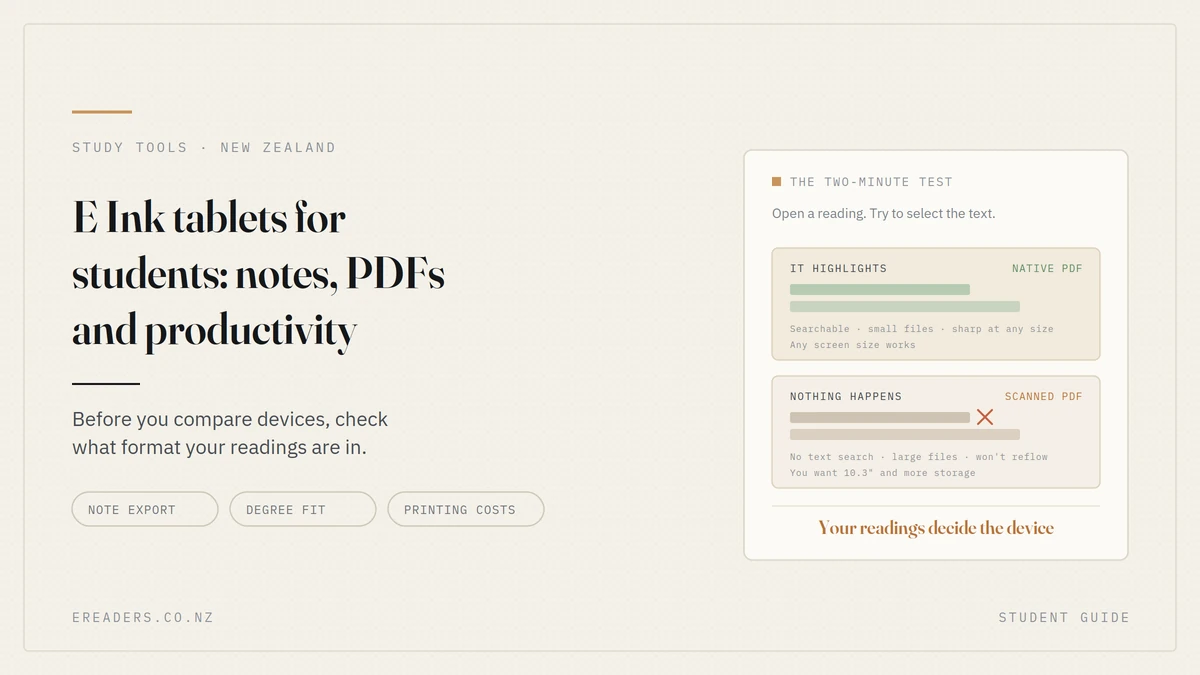
Native PDFs
Created digitally from a text document. The text is actually text small files, searchable, selectable, and sharp at any zoom level. Most modern journal articles and lecture handouts are like this.
These work brilliantly on any size screen, though A4 is still easier at 10.3 inches.
Scanned PDFs
Photographs of pages. Every page is an image, which means:
- Much larger files a scanned textbook can be hundreds of megabytes
- No text search unless someone has OCR’d it
- No reflow, so you’re zooming and panning on a small screen
- Softer rendering, particularly at small sizes
Common in older journal archives, library scans and course readers assembled from photocopies.
How to check yours
Open three or four of your readings on a laptop and try to select a line of text with your cursor.
If it highlights, it’s native. If nothing happens, it’s a scan.
Do this now. If most of your material is scanned, you need a larger screen and more storage, and our guide to eReader storage explains why the file sizes matter.
The workflow, semester by semester
The part most reviews skip. A device is only useful if material gets onto it easily and notes get off it again.
Getting readings onto it
Three routes, and you’ll use all of them:
- Download from your LMS directly in the device’s browser, if it behaves
- Cloud sync — Drive, OneDrive or Dropbox, which is the most practical week to week
- Cable transfer for bulk loading at the start of semester
The cloud route is what most people settle into. Save a reading to a folder on your laptop, open it on the device an hour later.
Organising by paper
Set up a folder per paper in week one and file everything as you go.
This sounds obvious and it’s the thing that collapses by week six. Two hundred PDFs named Reading_3_final_v2.pdf in one directory is worse than the pile of paper you were trying to replace.
Check the device’s search and folder handling before you buy it matters more than it sounds.
Taking notes in lectures
Handwriting alongside a slide deck, split screen, annotating directly on the reading being discussed.
Latency on modern devices is good enough that handwriting feels natural. It isn’t zero you’ll notice it against paper if you’re looking for it, and not otherwise.
Quiet, too, which matters more in a lecture theatre than people expect. No keyboard clatter.
Getting notes out at exam time
This is the question that decides whether the device sticks, and almost nobody asks it before buying.
Check three things:
- Handwriting recognition: is it accurate on your handwriting, not on a demo?
- Export format: PDF, image or text, and do annotations stay attached to the source document?
- Cloud sync: does it reach the app you actually revise from?
A beautiful set of handwritten notes locked inside a device you can’t search is a set of notes you’ll stop making. Test the export path in your first week, not in October.
What it replaces, and what it doesn’t
| Task | E Ink tablet | Laptop | Paper |
|---|---|---|---|
| Reading long PDFs | Best | Tiring | Good, but heavy |
| Annotating readings | Best | Awkward | Good |
| Handwritten notes | Very good | No | Good |
| Essay writing | Adequate with keyboard | Best | No |
| Spreadsheets and stats | No | Only option | No |
| LMS quizzes | Often no | Best | No |
| Video lectures | No | Best | No |
| Group work and calls | No | Best | No |
| Referencing software | Limited | Best | No |
| All-day battery | Best | No | N/A |
The laptop tasks it can’t do
Video calls, spreadsheets, statistical software, design tools, anything with motion, and browser-dependent LMS activities like timed quizzes. E Ink refresh rates aren’t built for any of it.
If someone tells you it replaces a laptop, they haven’t sat an online test on one.
What it does better than a laptop
- Reading for hours without the eye fatigue of a backlit screen
- Battery that lasts all day, and then the rest of the week
- No notification pull — nothing arrives while you’re reading
- Readable outdoors, on a lawn or a bus, where a laptop is a mirror
Which degrees it suits, and which it doesn’t
A clear position, because a vague one helps nobody.
Strong fit
Law, humanities, social sciences, theology, medicine and health. Reading-heavy degrees with dense PDF material, long readings and a lot of annotation. This is where an E Ink tablet is a genuinely significant change rather than a nice extra.
If your week involves two hundred pages of reading and a lot of highlighting, this is the case the device was designed for.
Mixed fit
Business, education, sciences with a reading component. Real reading load, but also spreadsheets, software or lab work that keeps you on a laptop anyway. Useful as a second device, not a central one.
Weak fit
Engineering, computer science, design, architecture. Where the software is the coursework, an E Ink tablet does little. You’ll still be on a laptop for most of your week, and the reading load is usually lighter and more technical.
Not useless a comp sci student who reads a lot of documentation may still like it. But be honest that it’s supplementary rather than central, and price it accordingly.
The cost question, answered properly
The honest comparison isn’t against an iPad. It’s against printing.
What students actually spend
Course readings, lecture slides, past papers, draft essays. Students on reading-heavy degrees print a great deal, and per-page costs add up quietly across a semester.
Work out your own figure: pages per week × weeks × per-page cost × years remaining. For some degrees the number is surprising.
The rest of the ledger
Budget for the device plus a stylus often sold separately, and essential for this use and a case, since it’s being carried daily. A keyboard cover is optional and only worth it if you draft long-form on the device.
Our BOOX accessories guide covers what’s genuinely needed versus what isn’t.
When it doesn’t pay back
- Short courses or a single year remaining
- Degrees with light reading loads
- Students who genuinely don’t print and are content reading on a laptop
If that’s you, the money is better spent elsewhere. We’d rather say so.
Practical realities of a teaching day
Battery. The genuine advantage. Days of use per charge, so it survives a full timetable and the week after without a charger in your bag.
Weight. A 10.3-inch device with a case is noticeable but manageable and lighter than the printed readings it replaces. Add a keyboard cover and that changes.
Durability. It’s a daily-carry item in a bag with a water bottle and a laptop. A case isn’t optional.
Glare. In a bright lecture theatre or outdoors between classes, an E Ink screen stays readable where a laptop reflects the room back at you.
Which size, briefly
10.3 inches for A4 course PDFs. This is the size that makes scanned readings and journal articles workable rather than merely openable.
7 inches only if your material is ebooks and typed notes rather than PDFs.
Our guide to choosing a BOOX for your reading style covers the full device comparison this post is about whether one fits your degree, not which model to pick.
FAQs
Can an E Ink tablet replace a laptop for university?
No. It replaces printing and a stack of readings. You’ll still need a laptop for essays, spreadsheets, LMS quizzes, video lectures and group work. Treat it as a reading and note-taking device rather than a computer.
Is an E Ink tablet good for taking lecture notes?
Yes, particularly with split screen alongside slides. Handwriting latency is low enough to feel natural, and it’s silent, which matters in a lecture theatre. Check the export path before you rely on it.
Can I read scanned course PDFs on one?
Yes, though scans are image files large, unsearchable and non-reflowing. That argues for a 10.3-inch screen and more storage. Check whether your readings are scans by trying to select text in them.
Will my handwritten notes sync to my laptop?
Usually, via cloud services and export to PDF, image or text. Check that the specific export path reaches whatever you revise from, and test it in your first week rather than before exams.
What size do I need for university readings?
10.3 inches for A4 PDFs, which is most course material. A 7-inch device works if your readings are ebooks, but scanned articles on a small screen mean constant zooming.
Is it worth it for a three-year degree?
Depends on your reading load and what you currently spend on printing. For reading-heavy degrees with two or three years remaining, the case is reasonable. For a final year or a light-reading course, less so.
Can I use it for exams?
Almost certainly not most institutions don’t permit personal devices in exams. It’s a study tool for the weeks before, not a tool for the exam itself. Check your university’s rules.